After you have successfully registered to im✻PACT and created your first Workspace, this article would help you familiarise with some of the im✻PACT basics . If you haven't yet registered, or created a Workspace, the following links would be useful for you.
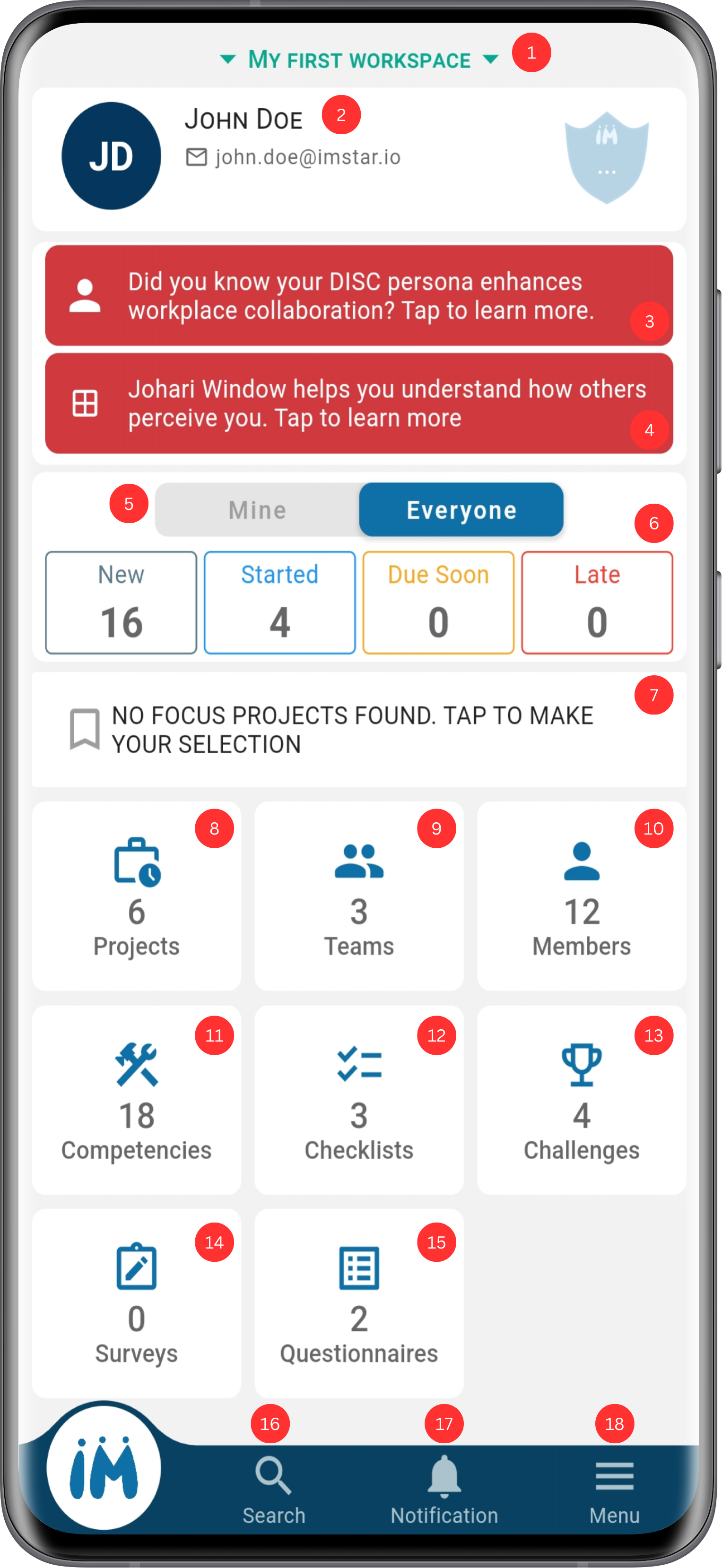
Once you have signed in, you'll be greeted with the landing screen. It might look very complicated, but don't worry, we can assure you that it is actually very easy to use. The following section describes the anatomy of this screen to familiarise you with the various components at play here.
-
-
- Workspace selector - Here, you'd find the list of workspaces that you are involved in as an administrator, owner, or a member.
- Profile card - Tapping here would navigate you to your profile screen. Here, you'd find all the different charts, metrics, schedules, and other various entities to help you give an insight into your performance, workload, psychometrics, and so much more.
- DISC Psychometrics - Allows you to get a better understanding of your team dynamics.
- Johari Window - Helps you to gain some insights into your own self.
- Me/Everyone Toggle - Helps you to get an overview of the items that are directly assigned to you, and items that you're in-charge of.
- ME view - You will see the number of Projects and Teams, and Challenges where you are involved.
- EVERYONE view - You will see the total number of Projects, Teams, and Challenges under the workspaces that you manage.
- Activities Summary - The 4 categories are explained as follows:
- NEW: These are all the activities that have newly been assigned to you.
- STARTED: These are all the activities that you have already started working on.
- DUE SOON: These are all the activities whose expected end time is near.
- LATE: These are all the activites which have lapsed the expected end time but haven't yet been completed.
- Boomarked Projects - Projects that you have bookmarked.
- Projects - Number of Projects that you have access to in the selected Workspaces. Tap on the tile to navigate inside to see the list of Projects.
- Teams - Number of Teams that you have access to in the selected Workspaces. In im✻PACT, we have 2 different types of Teams.
- Local Teams: These are the teams that are scoped at a Project level. They are created under a Project and only usable within that Project.
- Global Teams: These are the teams that are scored at a Workspace level. These Teams are created and maintained by Workspace administrators.
- Members - Number of Members in the selected Workspaces. Tap on the tile to see the list of Members that share your selected Workspaces.
- Competencies - Number of Competencies that are being maintained in the selected Workspaces.
- Checklists - Number of Checklists that are being maintained in the selected Workspaces.
- Challenges - Number of Challenges that you have access to.
- Surveys - Number of Surveys that you have participated in, in past and present.
- Questionnaires - Number of questionnaire sets that have been created by the Workspace members.
- Global Search - Your one-stop-shop to search all the entities under your selected Workspaces. From here you can search for items such as Tasks, Projects, Teams (both local, and global), and Members.
- Notifications - Here you'd find all the notifications that have been sent out to you. We recommend you to regularly check your notifications to get regular updates about your Tasks, Teams, Projects, Surveys, Invites and much more.
- User Menu - The menu here is divided up further into sub-sections:
- Personal - Under this section, you'd see several settings related to your im✻PACT account:
- Invitations - You'd find all your pending and accepted Workspace Invitations here. You can also accept pending invitations from here.
- Support Tickets - This is your portal to view all the tickets that you have created, in addition to allowing you to create new Tickets.
- Entitlements - This is where you can manage your Personal and Workspace Subscriptions.
- Application - Under this section, you can customize your im✻PACT app such as your authentication method (we allow you to sign in with Bio-metrics), change your password, and change the app theme (light/dark) and language. Our app currently supports English, Bahasa Melayu, and Chinese 中文 .
- Legal - Terms of Services and Privacy Notice for our entire system.
- Personal - Under this section, you'd see several settings related to your im✻PACT account:
-
We hope that you have gained a rudimentary understanding of the various components of im✻PACT system. To gain a deeper understanding, you are strongly encouraged to navigate around the app, experiment with different components, and try new things. We have built im✻PACT to last, so don't worry you won't break anything.
If you have any questions or queries, please feel free to reach out to us.